

User guide · getting started · 8 min read
One long page, and it fills itself in.
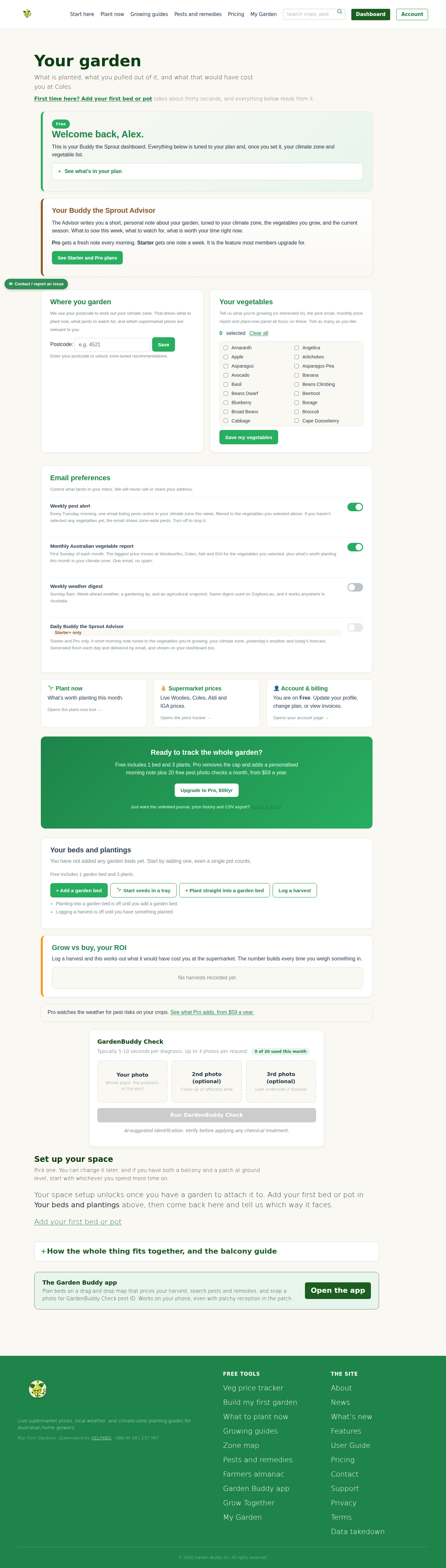
My Garden is one long page of stacked panels. The top ones ask you things: your postcode, your vegetables, your email choices. The bottom ones show you things: what you have planted, what is due, what it is worth. Fill the top and the bottom fills itself. This chapter walks the page top to bottom as it looks on a fresh free account.
 Fill in the top panels once. The bottom half of the page does the rest.
How the page is laid out
Everything on My Garden is yours alone. Nothing another member enters can appear on your page, and nothing you enter appears on theirs. The page has no tabs and no hidden menus, you scroll. Panels that need something you have not given yet say so in plain words and stay put until you do. Two panels only appear once there is something to show: Plant now waits for a postcode, and Garden tasks waits for a plant.
Right under the page title there is a line: First time here? Add your first bed or pot. It jumps you straight to the beds panel. If you only do one thing on your first visit, do that.
Your first day, in order
- Postcode. The Where you garden box, left column. Four digits, press Save. Covered in full in Your postcode and climate zone.
- Vegetables. Tick what you grow or want to grow in Your vegetables, then Save my vegetables. Ticking nothing is allowed, you just get zone wide pest emails instead of filtered ones.
- A bed. Scroll to Your beds and plantings, press Add a garden bed, give it a name, Save bed. A pot on a balcony is a bed. See Add your first garden bed.
- A plant. Press Plant straight into a garden bed, or Start seeds in a tray if it is not in the ground yet. See Add a plant to your bed.
- Come back tomorrow. The Garden tasks panel will have appeared with your first watering and care reminders.
Panel by panel
1. Welcome banner
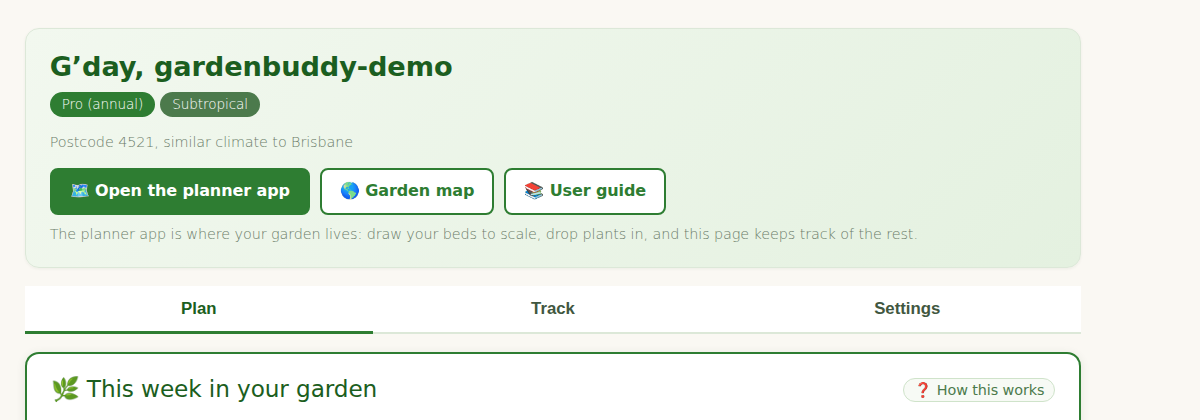
Your plan badge (Free, Starter or Pro) and a one line reminder of what the page does. The See what’s in your plan row folds out a list of what your plan includes and what the next plan adds. No settings live here.
2. Your Buddy the Sprout Advisor
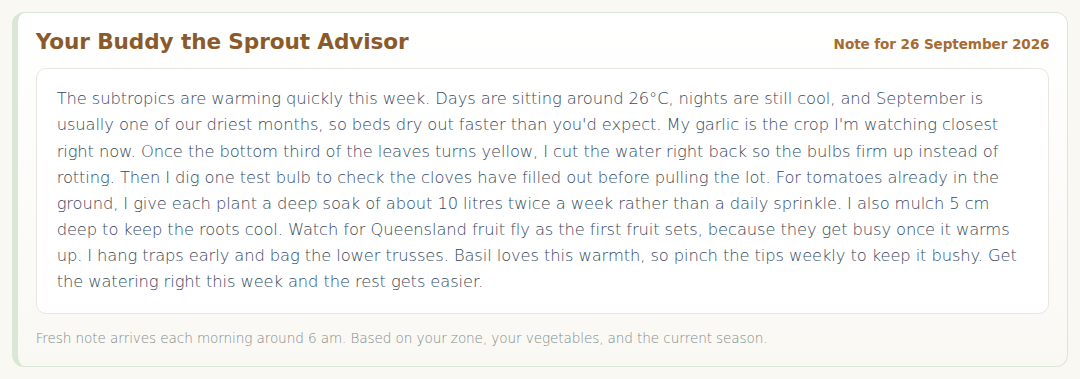
A short written note about your garden: what to sow this week, what to watch for, what is worth your time. It is tuned to your zone, your vegetable list and the season. On Free this panel explains the feature and shows the plans. Starter gets one note a week, Pro gets a fresh one every morning.
3. Where you garden
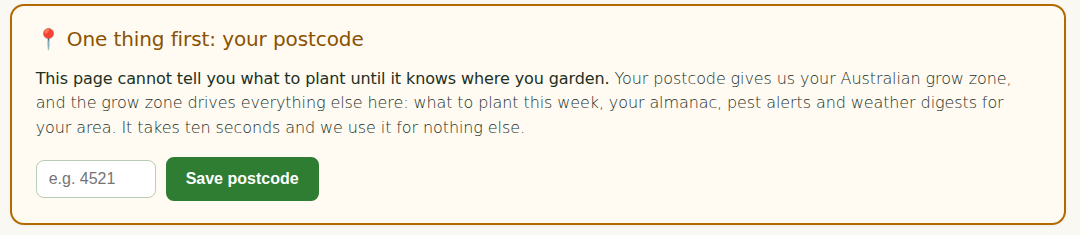
The postcode box. One field, one button. Once saved it shows your zone and the town we matched. Everything below it depends on this, so if the panel is still asking for a postcode, stop and do that first.
4. Your vegetables
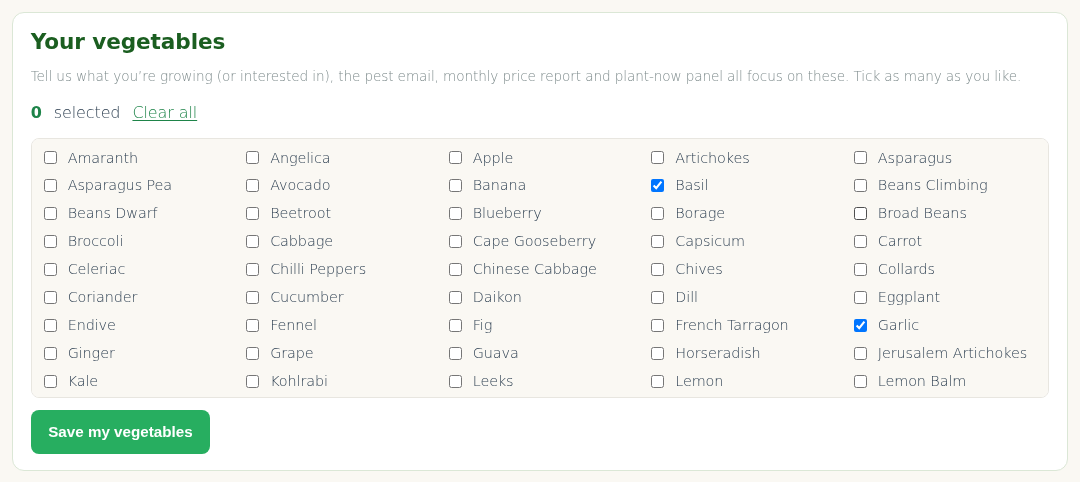
A tick list of crops. It is not the same as the plants in your beds. Think of it as “what I care about”. The weekly pest email, the monthly price report and the Plant now card all filter to this list. Tick as many as you like, press Save my vegetables, and change it whenever your interests change.
5. Email preferences
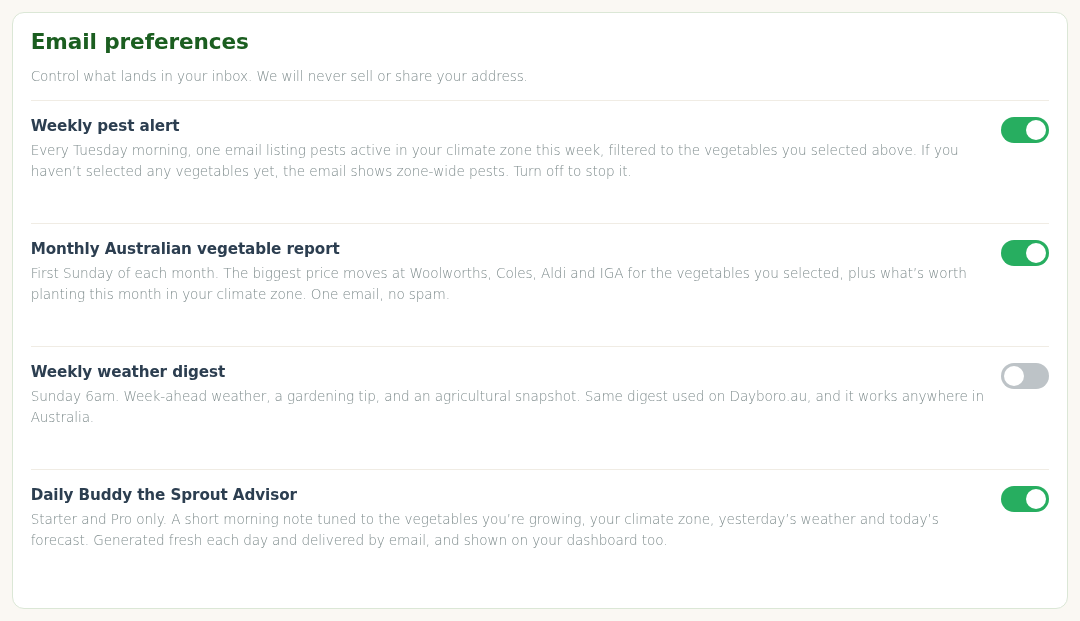
Switches for each email we send: the weekly pest alert, the monthly Australian vegetable report, the weekly digest and the rest. Each one has a line saying when it goes out and what is in it. Starter and Pro only emails are marked. Turn off anything you do not want, the switch saves on its own. The onboarding reminders you get in the first week are one off and stop by themselves once you have done the thing they ask.
6. Plant now and prices
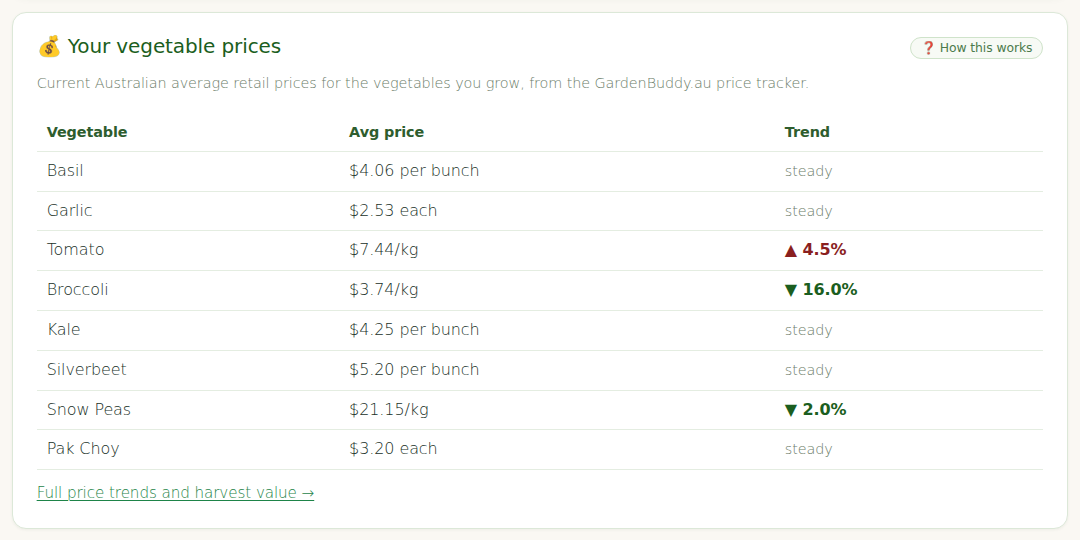
These two cards appear once your postcode is saved. Plant now lists what you can sow or plant this month in your zone, filtered to your vegetable list if you ticked any. The prices card shows the current supermarket price for those same crops, which is where the grow versus buy figures further down come from.
7. Your beds and plantings
This is the working part of the page. Four buttons: Add a garden bed, Start seeds in a tray, Plant straight into a garden bed and Log a harvest. The last two stay switched off until there is a bed and a plant to use them on, and the panel tells you so under the buttons. Free includes one bed and ten plants, which is enough to see the whole loop work. Starter and Pro remove the limit.
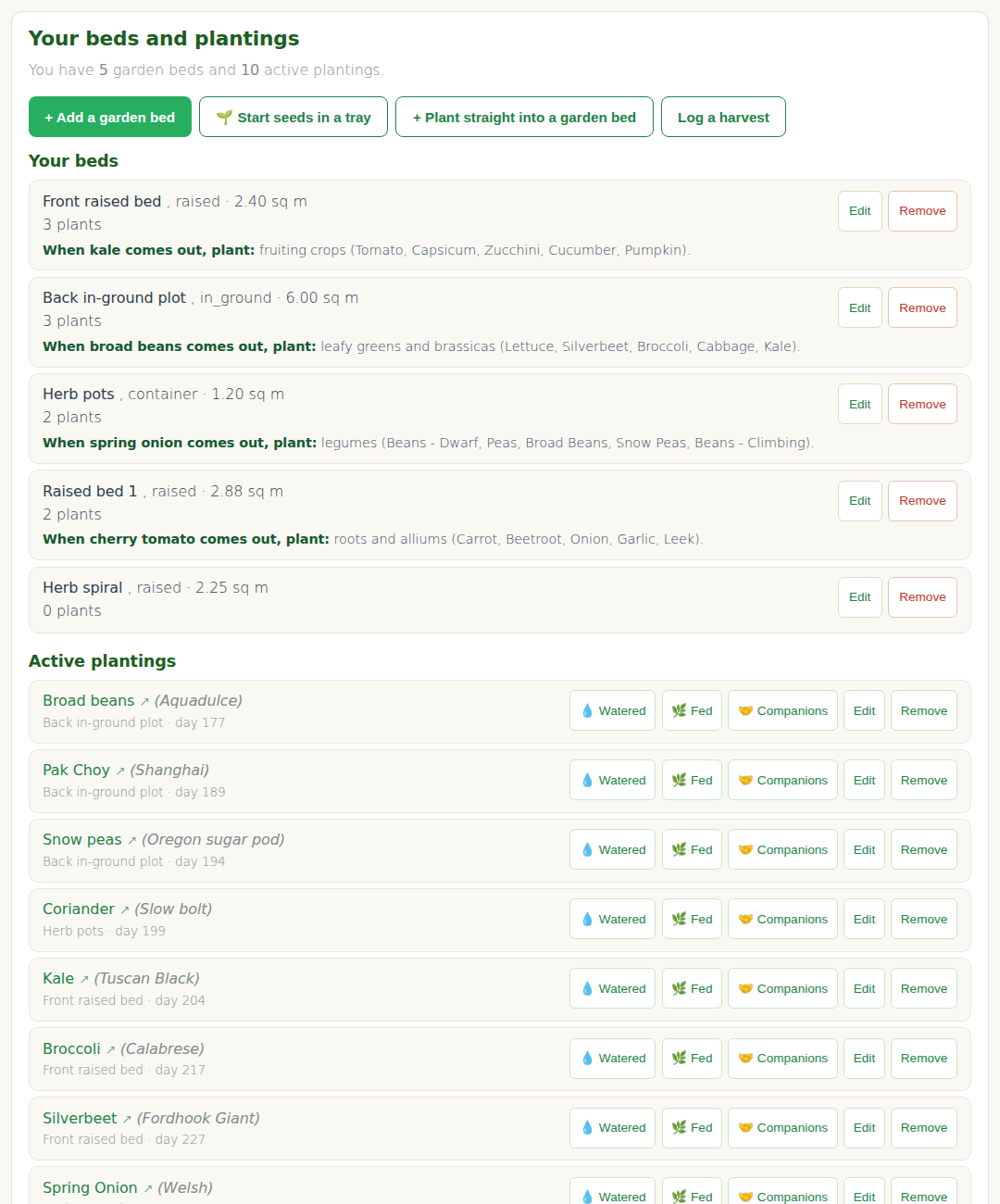
Once you have plants, each one is listed under its bed with an Edit and a Remove button, its planting date and its expected harvest window.
8. Garden tasks
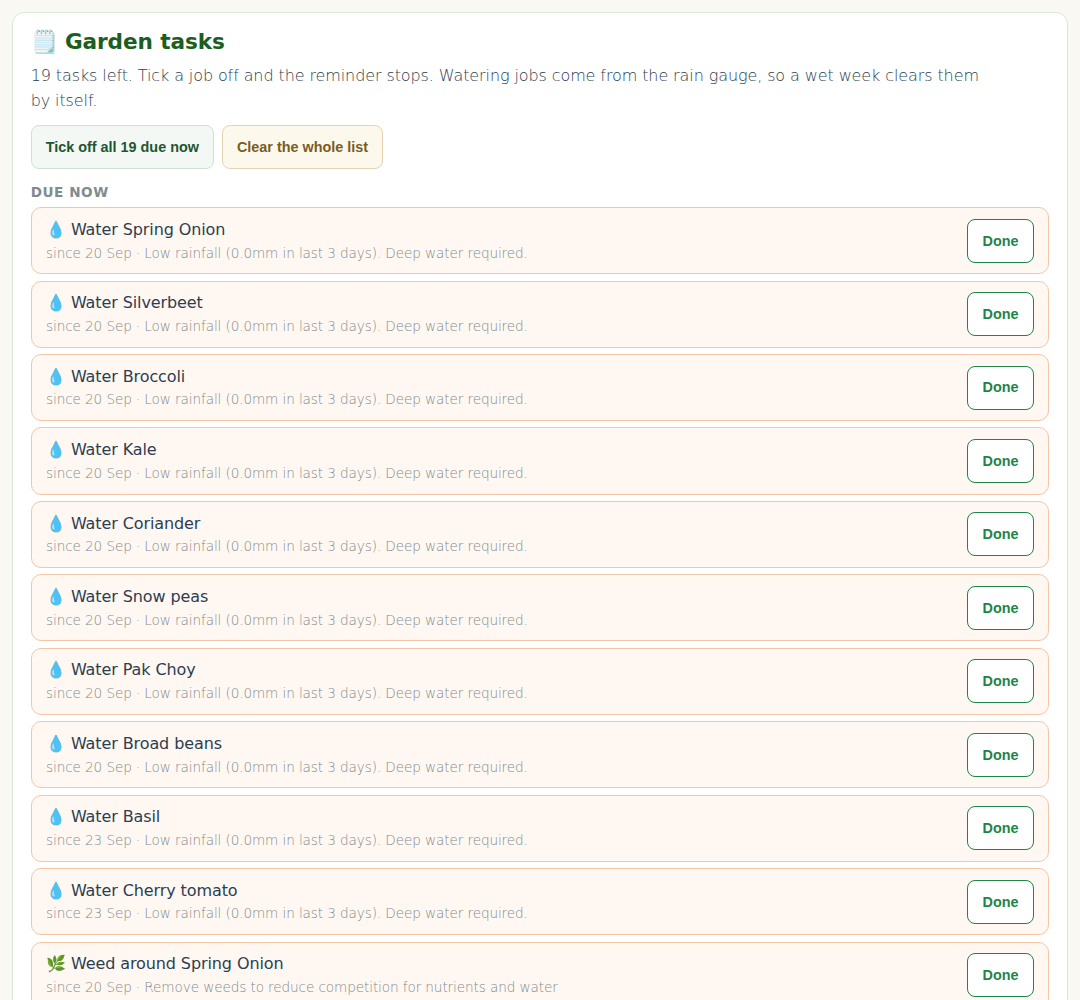
Appears once you have at least one plant. A dated list of what to do: water, feed, mulch, check for pests, harvest. Each line has a Done button. Overdue tasks are marked, and old undone tasks drop off after a while rather than piling up. The same tasks are what the weekly digest is built from.
9. Grow vs buy, your ROI
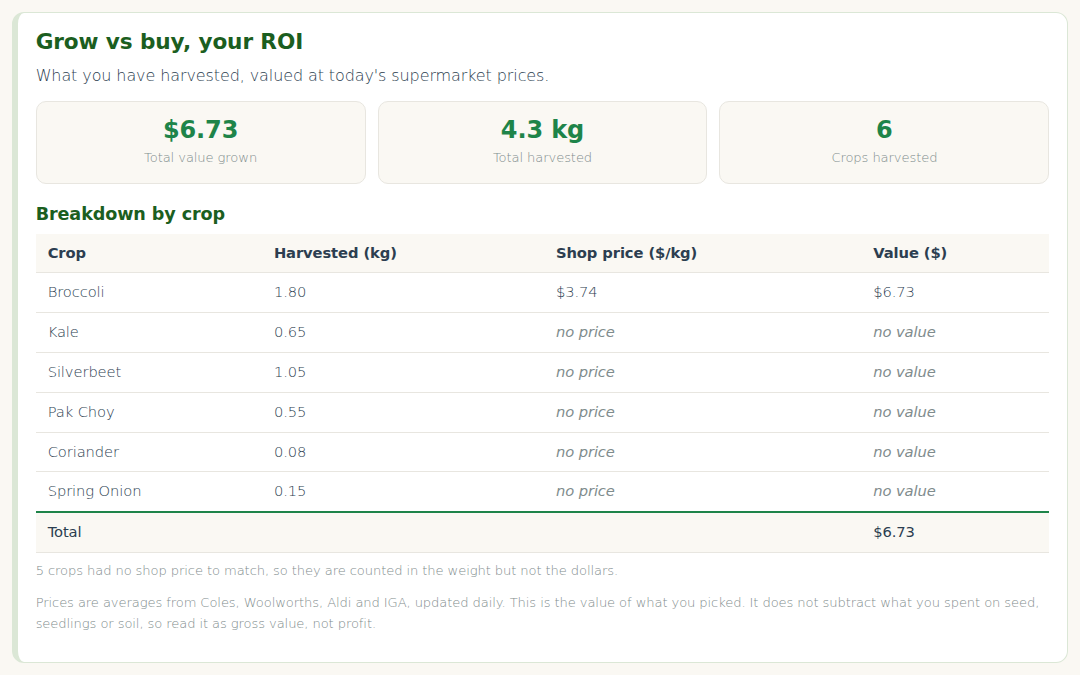
Every harvest you log is priced at the current supermarket rate for that crop in your state, and the running total is shown here against what you have spent. Empty until your first harvest. Read Read your ROI report for how the numbers are worked out.
10. Set up your space
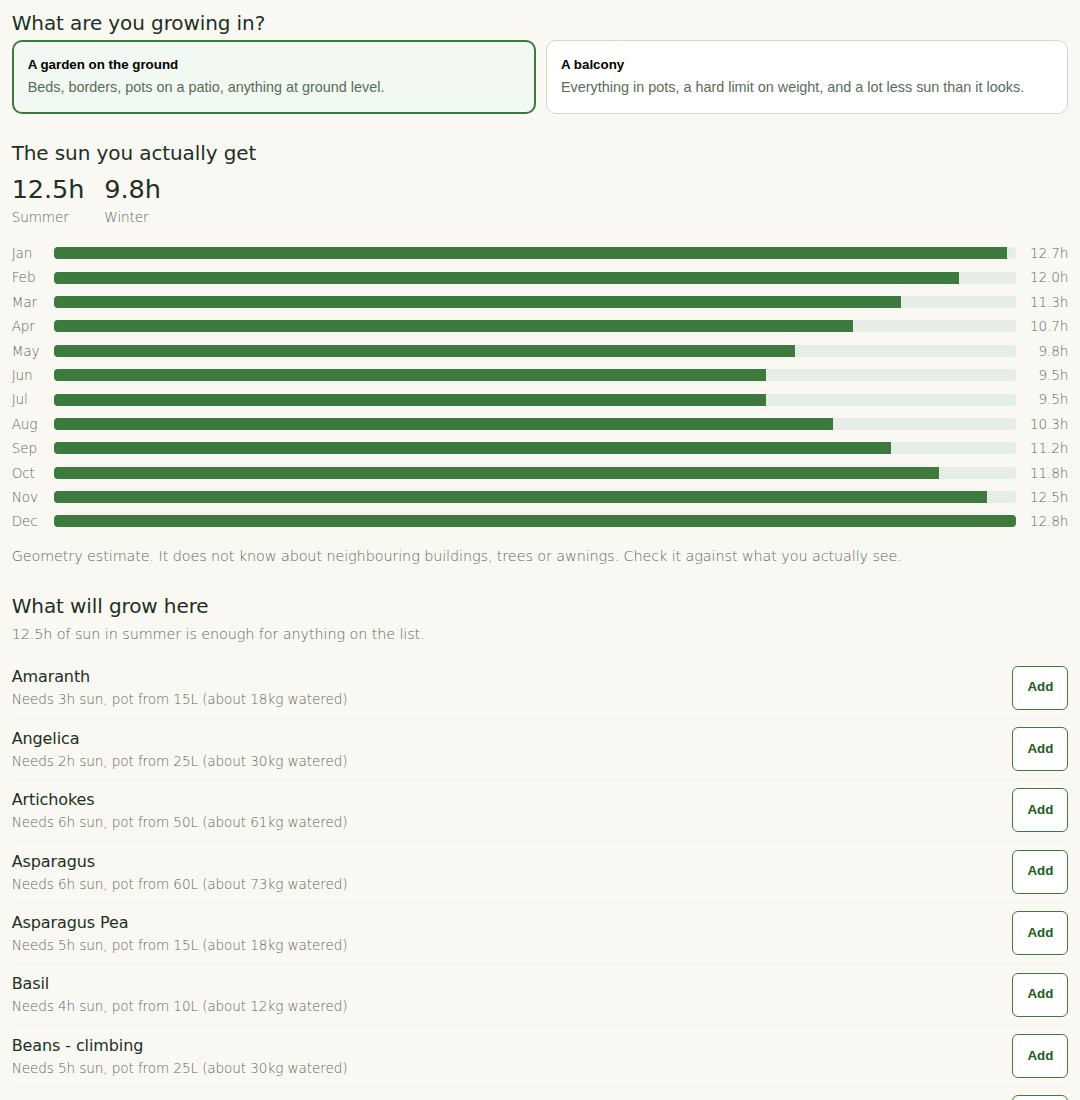
The bottom of the page asks what kind of space you garden in: a backyard patch, a balcony or courtyard, or a shared plot. It unlocks once you have a bed, because the answers attach to the bed. It feeds the sun and shade advice and the balcony guide underneath it.
A typical week
After the first day the page becomes a two minute habit. Open it, glance at the tasks, press Done on the ones you did, log anything you picked with Log a harvest. That is it. The digest on the weekend and the pest alert on Tuesday do the reminding, you do not need to visit every day unless you want to.
Every GardenBuddy.au email links straight into My Garden and signs you in on its own. Tap the button in the digest, mark the task done, close the tab.
Who can see what
You need to be logged in to see My Garden at all. Visitors who are not logged in are sent to the login page. All three plans get the page: Free with one bed and ten plants, Starter and Pro without a limit. The data is yours only. Every query behind the page is tied to your account, there is no view where another member’s beds, plants or harvests could show up on yours.