

User guide · getting started · 7 min read
Your member home, the page behind the login.
Log in and you land on one page: what is ready to pick, what needs doing this week, what to plant now, and what your crops cost at the shops. This article walks the whole page top to bottom so nothing on it is a mystery.
 Every plan sees the whole page, including the free one. Some panels just do more on a paid plan.
Getting there
You do not navigate to the member home, it comes to you. Log in anywhere on the site and you land on /dashboard/. If you type /my-garden/ into the address bar while logged in, you end up on the member home too, because that is where your garden tools live now.
Open /dashboard/ while logged out and you get a simple card with two choices: log in, or join free. Nothing about your garden is visible to anyone who is not you.
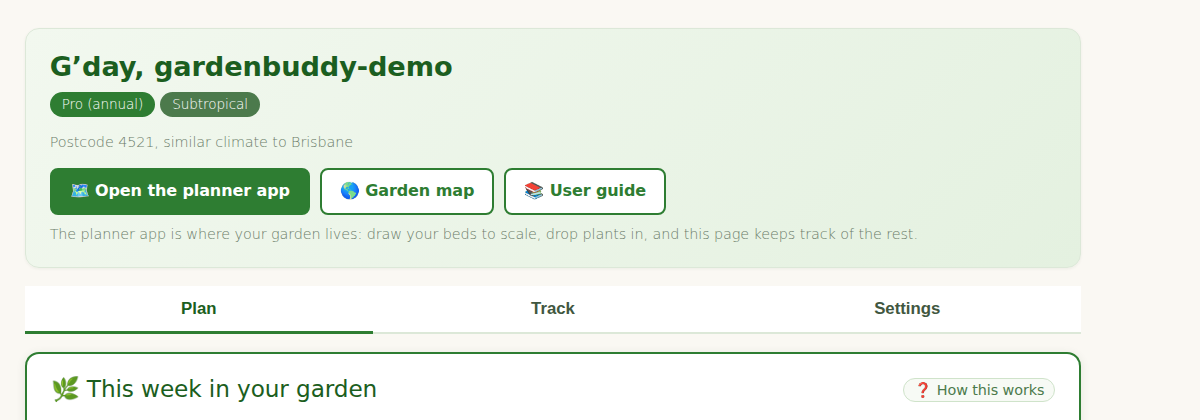
The top of the page greets you by first name and shows three chips: your plan, your trial countdown if you are in one, and your climate zone. Under that sit two buttons that follow you everywhere on this page: Open the planner app and User guide.
The one setup step, your postcode
Until the site knows your postcode, the member home shows one card and holds the rest back. Type the four digits, save, and the card is replaced by the full page. From your postcode we work out your climate zone and a representative town, which is what drives the planting suggestions, the almanac and the zone shown in your greeting.
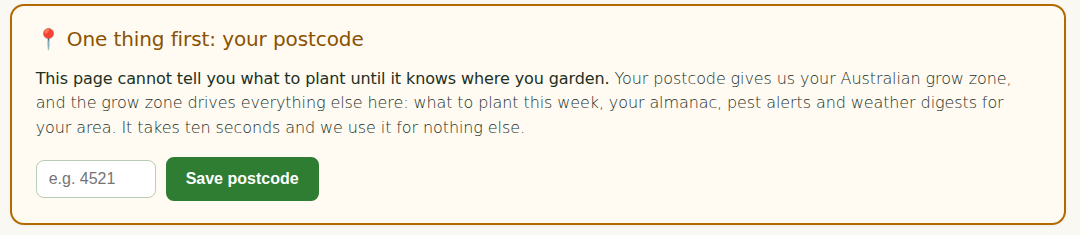
Get it wrong, or move house, and you can change it later from the settings row at the bottom of the page. Details in Your postcode and zone.
This week, the working half of the page
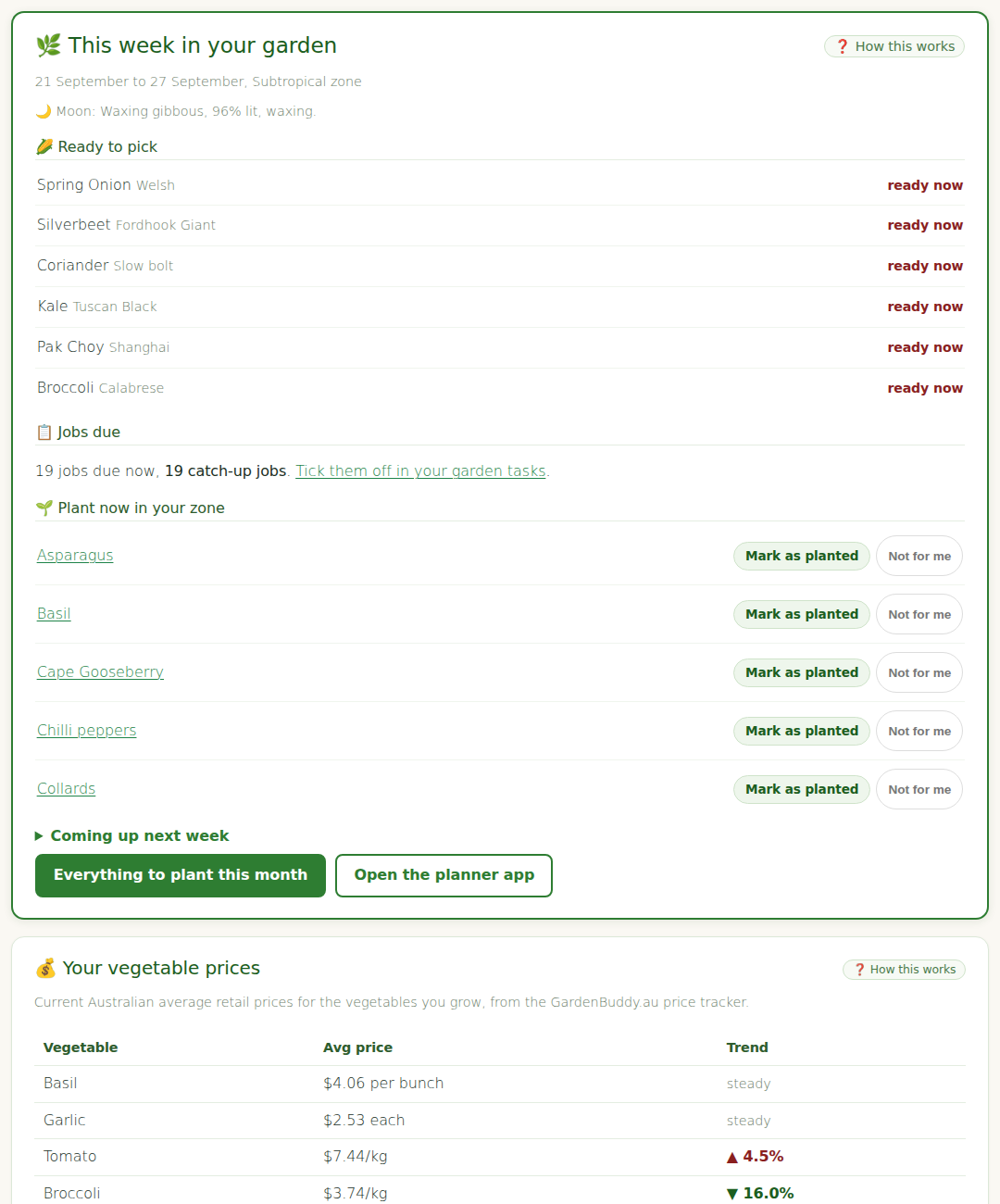
The This week section is the reason to open the page at all. Every plan sees it in full. It has three parts, all built from your own garden and your own zone, all looking at the next 7 days.
Ready to pick
Plants whose expected harvest date falls within the next 7 days, up to six of them. If nothing is close, the block stays quiet rather than inventing urgency.
Jobs due
The tasks generated from your plantings that fall due in the next 7 days, grouped so ten watering reminders read as one line, plus a count of anything overdue.
What to plant now
Up to five crops that suit your climate zone this week, each linking to its full growing guide for your zone. Two buttons matter here:
- Mark as planted, one tap and the crop goes into your garden as a real planting, which is what feeds your tasks, your harvest dates and your planting log.
- Not for me, which hides a crop you never want suggested again. It stays hidden until you put it back, so the list slowly becomes yours.
A “Coming up next week” line shows what is next, and the section ends with links to the full Plant Now tool and the planner app.
Everything in This week is only as good as what the site knows you are growing. If your beds and plantings are not recorded yet, start with Add your first garden bed, then come back. An empty garden gets planting suggestions; a recorded garden gets harvest dates and jobs too.
The rest of the page, section by section
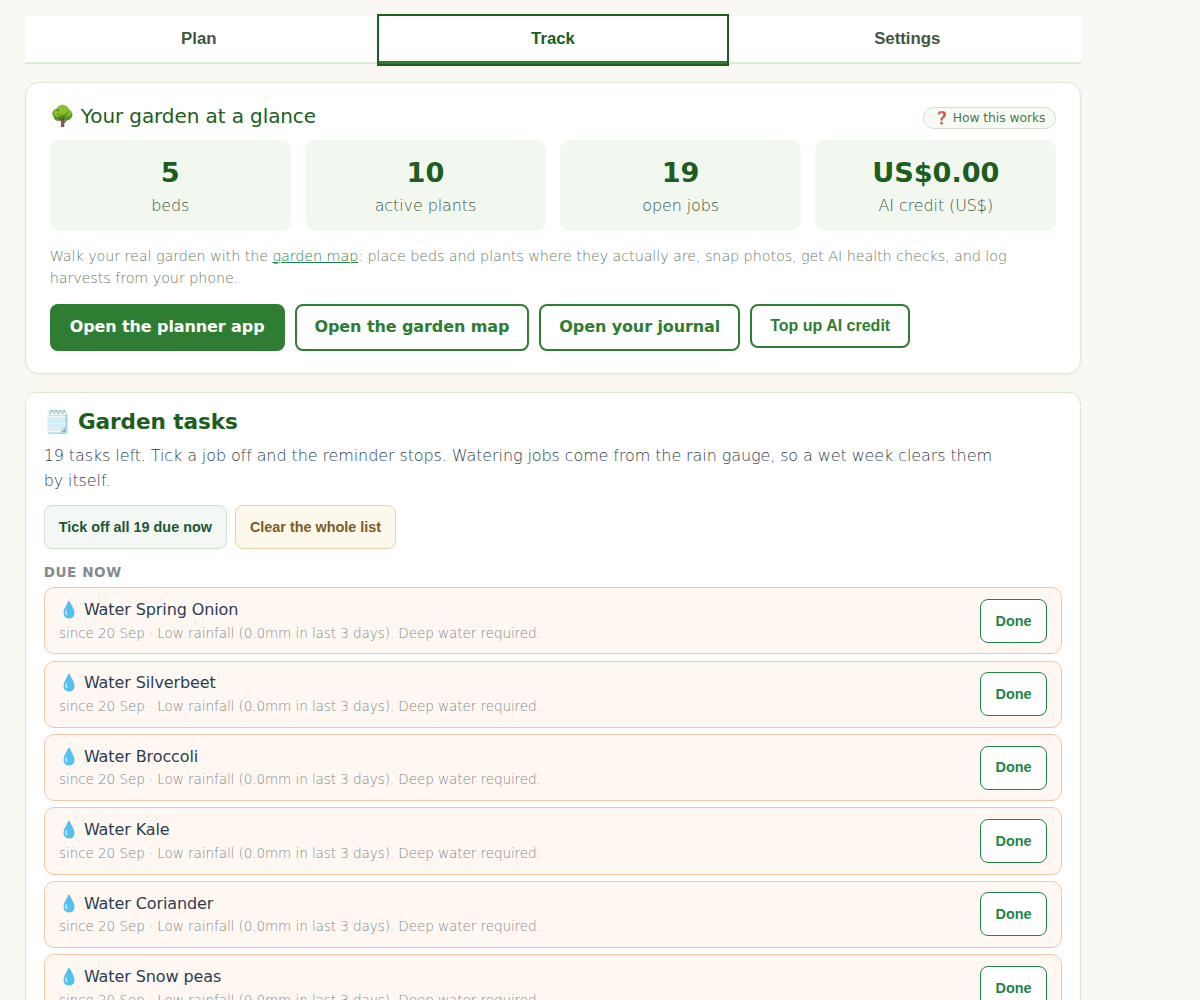
Your garden at a glance
Three counters, beds, active plants and open jobs, with buttons into the planner and down to the tools panels. The full walkthrough of the garden tools is in A tour of My Garden.
Your crops at the shops
Supermarket prices for the crops you grow or have said you like, up to eight rows. Crops sold by weight show dollars per kilo with an arrow when the price moved more than half a percent since last month; crops sold each or by the bunch show that price instead. It is the quickest answer to “was growing this worth it”. More in The live supermarket price tracker.
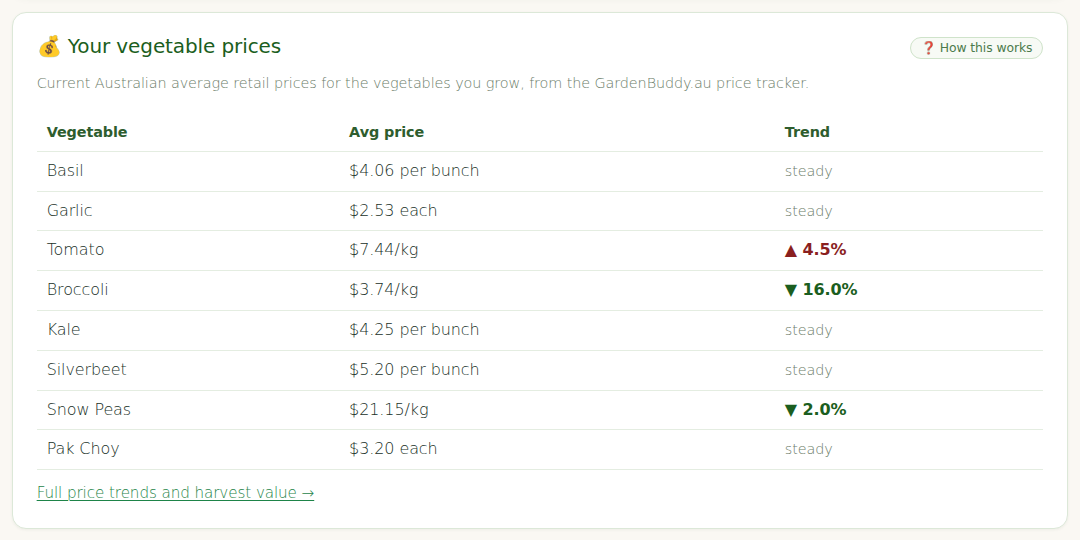
Your area almanac
A link into the farmers almanac for your zone. Paid plans open the current month. The free plan opens the previous month, with the current one part of the paid plans, from $29 a year with a 30 day free trial.
Your planting log
Every crop you confirmed with Mark as planted, newest first, on every plan with no cap. Paid plans also get the analytics on top: totals, this month, and how your confirmation speed compares with your zone.
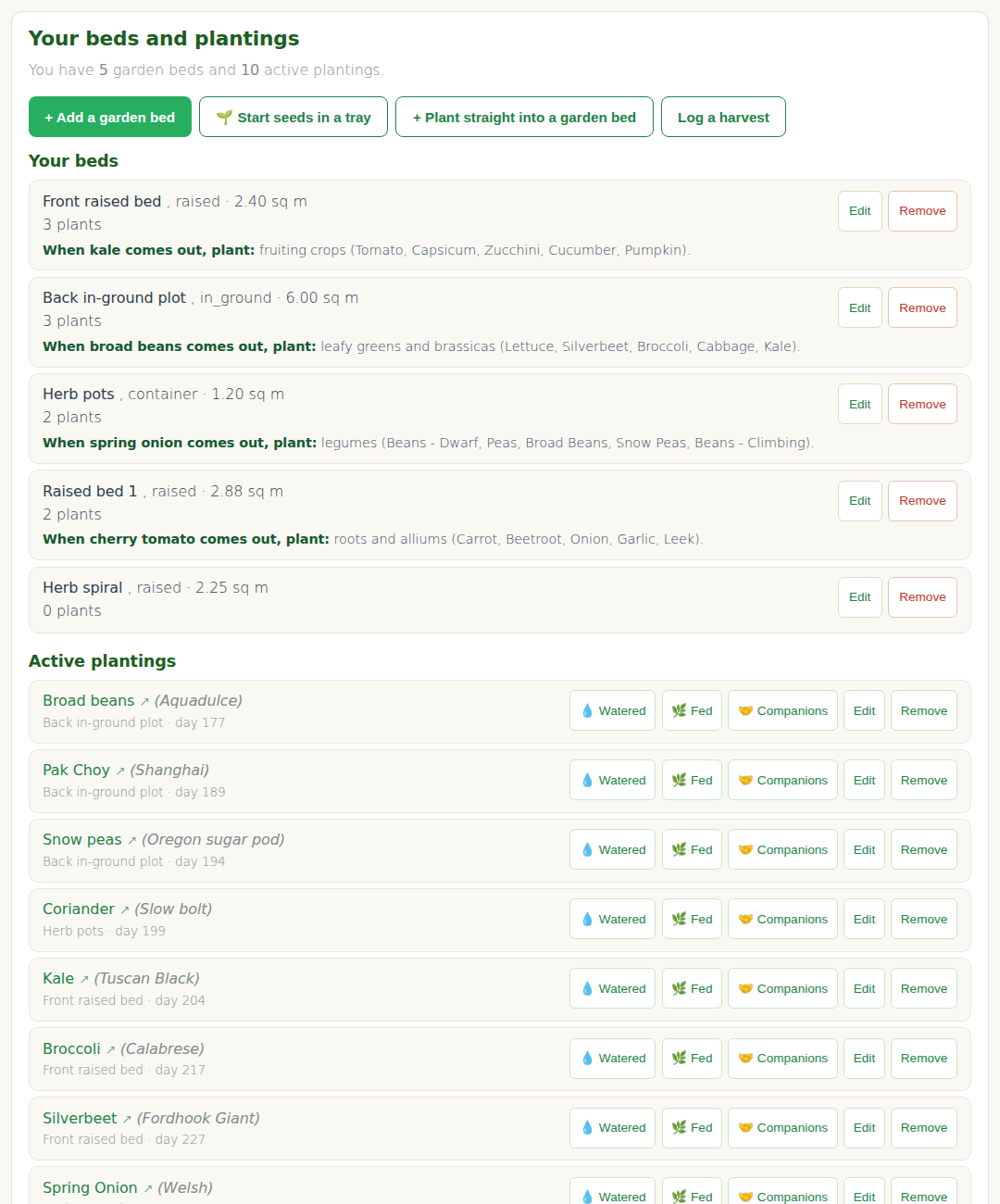
While you were away
The catch-up section. It shows blog posts published since your last visit, your latest pest alerts and weekly digests, and your recent support tickets if you have any. A “Last visit” line at the bottom tells you what it measured against.
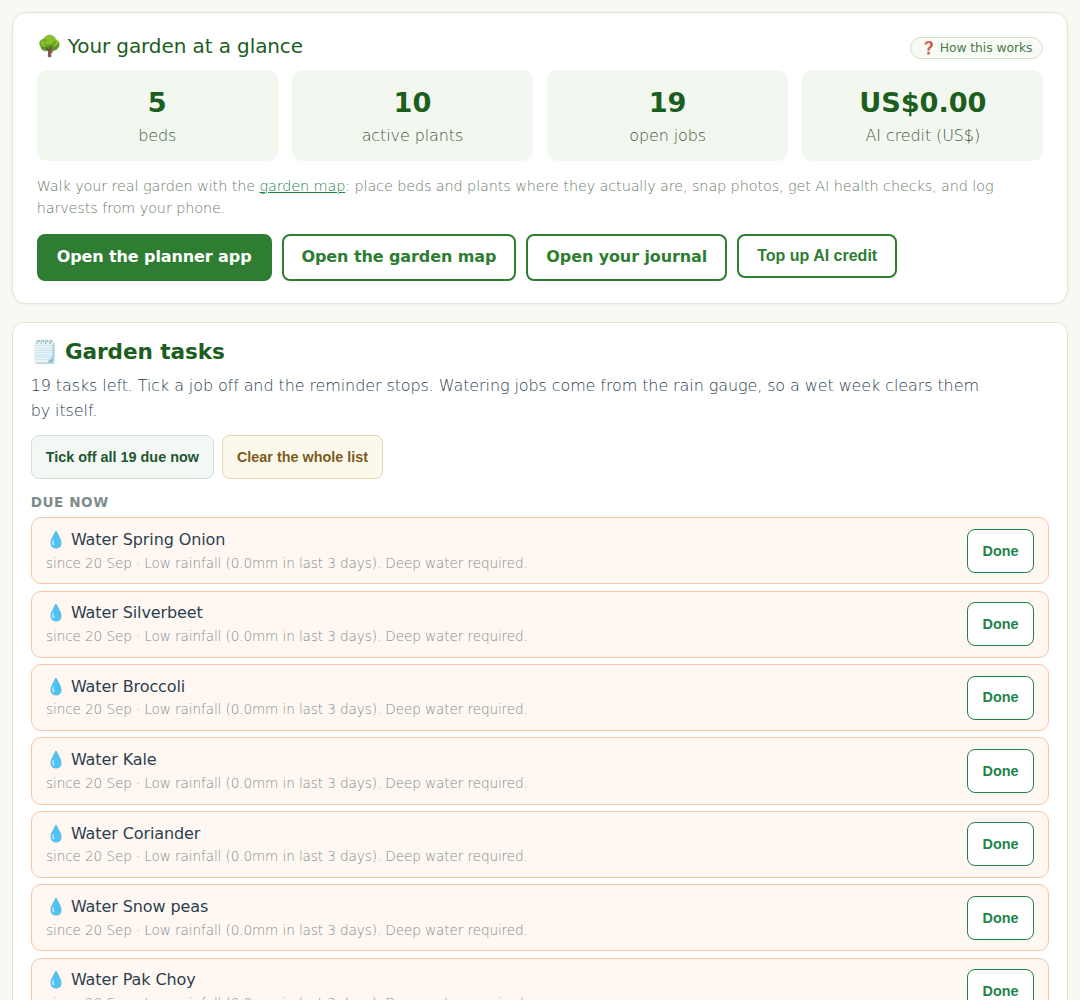
The tools panels
Further down the page sit the working tools. All plans see all the panels; what changes by plan is depth, not access to the page.
| Panel | Free | Starter | Pro |
|---|---|---|---|
| Garden journal (beds and plantings) | 1 bed, 10 plants | Full | Full |
| Tasks | Full | Full | Full |
| Harvest value (ROI) | Totals | Totals + per crop | Totals + per crop |
| Buddy the Sprout Advisor | Preview | Standard | Full |
| Pro panel (photo diagnosis and pest tools) | Teaser | Teaser | Full |
Emails, account and settings
A closed “Account” drawer near the bottom holds your vegetable preferences, your email toggles and your account details, so they are there when you need them and out of the way when you do not. The email toggles cover the pest alert, the monthly vegetable report, the weekly digest and the daily advisor email; what each one is, and which plans get which, is covered in Manage your email preferences.
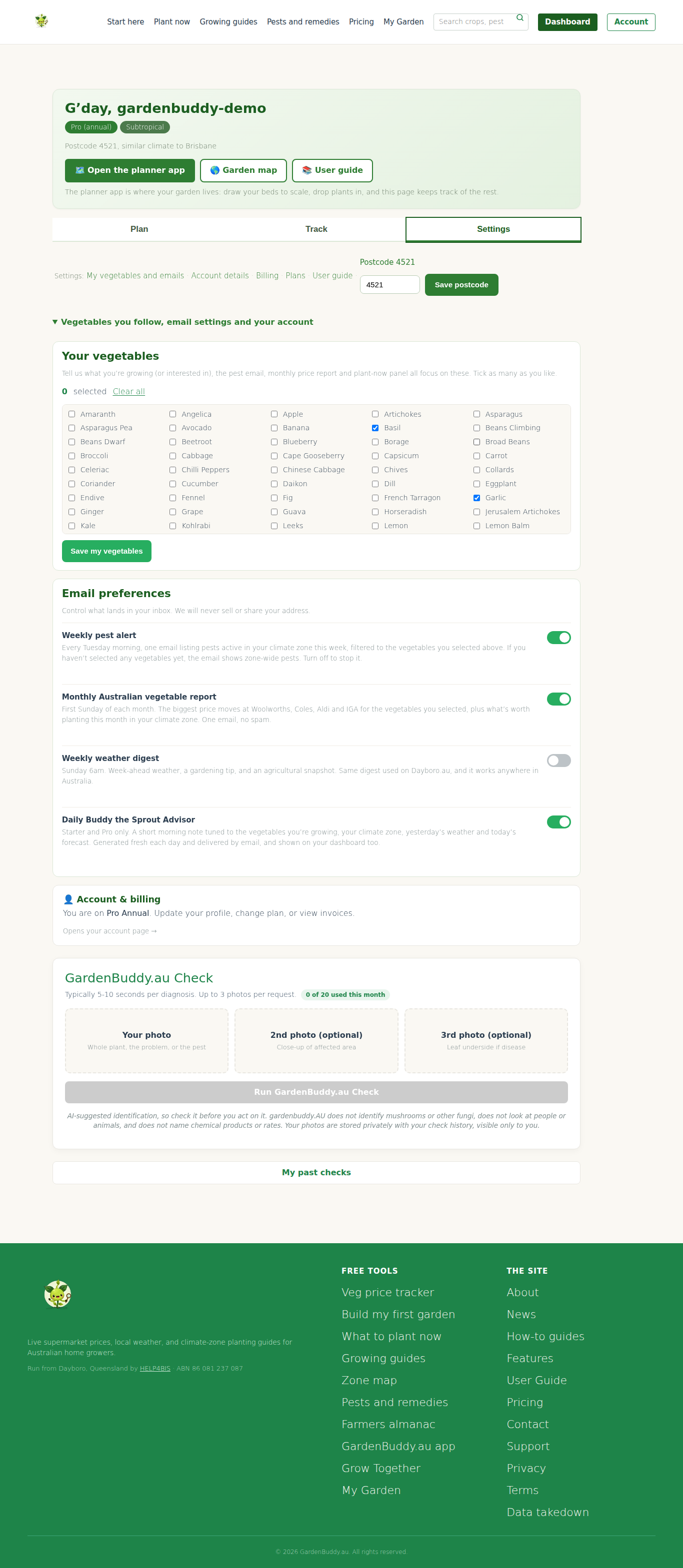
The settings row at the very bottom links to your account page, billing, the plans, this guide, and the inline postcode editor from earlier.
If you are on the free plan or inside a trial, the page ends with a plain comparison prompt rather than a pop-up: what the paid plans add, and a single Compare the plans button. That is the entire extent of the selling on your member home.