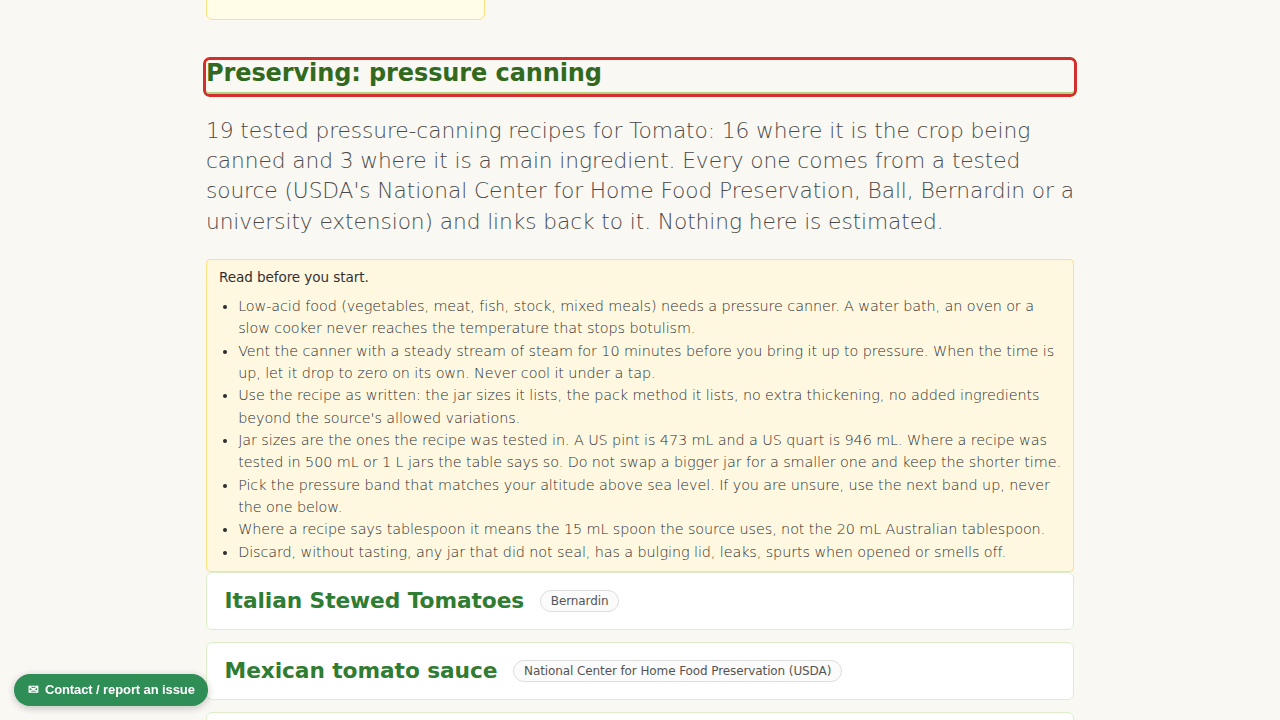
Yesterday we added the Companions button to My Garden. Since then we took the same crop sheet to the other places you make a planting decision, so you do not have to go looking for it. Each one is circled in red below so you can see exactly where it landed.
On the companion chart page the table has two new columns, grow before it and grow after it. Look up a crop and you see the whole picture on one row: who it likes next to it, who it does not, what turn should have gone in that bed last season and what to put in when it comes out.

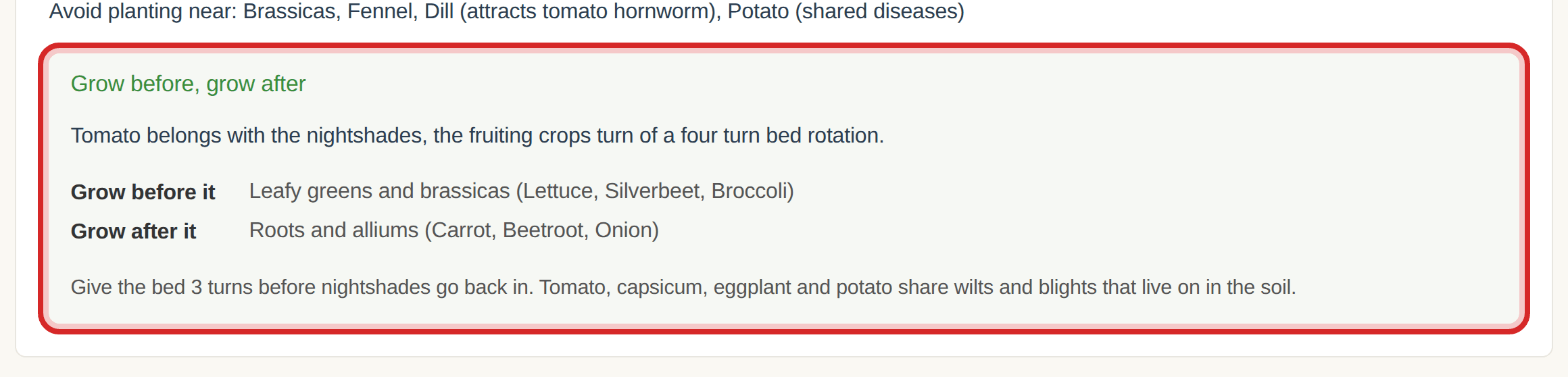
Every veggie guide page now carries a small “Grow before, grow after” block under Growing basics. It says which turn of the four turn rotation the crop belongs to, gives three examples for the turn before and the turn after, and reminds you to rest the bed when the sheet says so. Herbs and perennials that stay put do not get the block, because they do not rotate.
Your weekly digest has one more line per bed, the next in this bed pick. It reads what is in the bed now, works out which turn comes next, and names a crop from that turn you can plant in your zone this month. If a bed is empty it still gets a pick.
And the app has caught up. Open any veg in Explore and there is a “Companions, before and after” card just above the growing guide. Tap the card to open it.


Better still, when you add a plant to a bed, the app checks the bed as you type. If the crop clashes with something already in there, or the same family went in that bed last turn, you get a warning before you press Add. If it is a good fit, it says so. The check never blocks you, it just tells you what it knows.
One small fix on the way. The keep apart list on a few crops named the wrong group, for example tomatoes were told to stay away from “other brassicas”. They are told to stay away from brassicas now.